Downloading boards and content
Boards, texture packs, sound packs, pieces, fonts and presets that people have published can be found and installed from inside the game. You do not need an account just to browse and download.
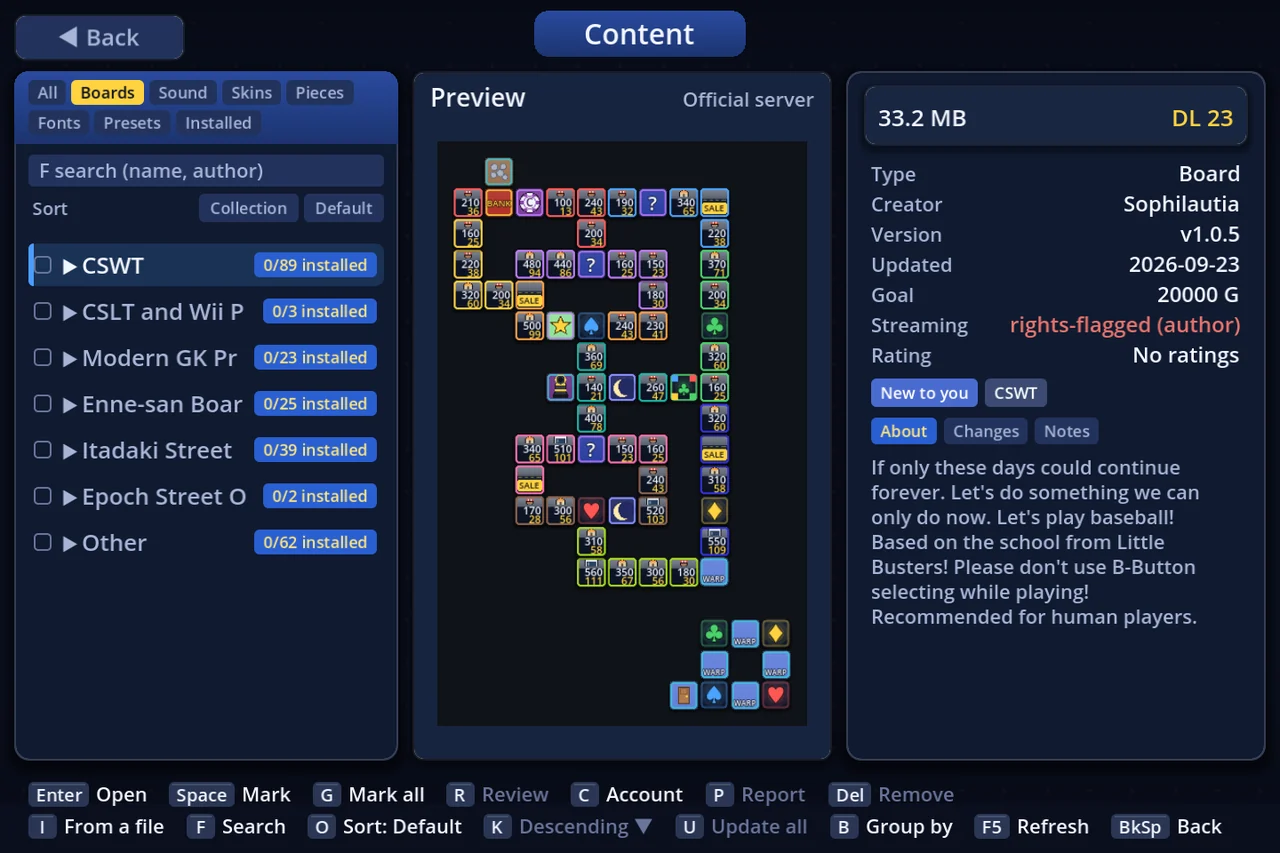
The released game ships with no boards at all. Before your first match, fetch a board here. When the board list is empty, press Enter on it to jump straight to this screen.
There are three ways to get things.
- Pick them in the game: the usual way (§1–§4)
- Let them arrive by themselves: new works are fetched when the game starts (§6)
- Download a file from the website: save it in your browser, then drop it on the game window (§7)
1. Opening the screen
There are two ways in.
| From | Do this |
|---|---|
| The title menu | Choose Downloads & Account |
| The board list | Press N, or click + Online (it opens with the Boards chip already chosen) |
The first time you connect, the game asks Use this server?
- Agree and create the account: lets you rate boards and publish your own work too
- No thanks (browse only): browse and download only. That is all you need for downloading (Esc picks this one as well)
You can create an account later from this screen (C).
2. Reading the screen
The screen has three columns.
| Column | What it holds |
|---|---|
| Left | The kind chips, search, sort, and the list of works |
| Middle | The preview picture |
| Right | Size, download count, kind, creator, version, last update, goal (boards only), rating, and the About / Changes / Notes tabs |
Kind chips
The chips above the list narrow it to one kind (← → or a click).
| Chip | What it shows |
|---|---|
| All | Everything |
| Boards | Boards |
| Sound | Sound packs |
| Skins | Texture packs (shop and building designs too) |
| Pieces | Pieces |
| Fonts | Fonts |
| Presets | Rule, player, settings and controls presets |
| Installed | What you have installed (including works no longer distributed) |
Row badges
| Badge | Meaning |
|---|---|
| In | Installed and up to date |
| Upd. | A newer version is out |
| Broken | Installed, but a sound or picture inside could not be read |
| □ | The mark for fetching several at once (§3) |
Searching and sorting
- F (or /) searches by name, creator and tags. Esc clears the search
- O changes the order: Default → Name → Rating → Updated → Creator → Goal
- K flips the direction (not available in the Default order)
Board folders
On the Boards chip, boards are grouped into folders (collections). Boards that belong to no collection go into Other.
- Open or close a folder with Enter or a click (clicking the ▶ / ▼ does the same)
- A folder row shows how many you have / how many there are
- B (Group by) switches between Collection and Origin (only when origin tags exist)
3. Fetching
| Key | What it does |
|---|---|
| Enter | Install the work under the cursor (Install) |
| Space | Mark or unmark it. On a folder it marks every board in that folder you do not have yet |
| G | Mark everything in the list you are looking at |
| Enter (with marks) | Install every marked work (Install N) |
The key band at the bottom can be clicked as well. Keys you cannot use right now are dimmed. With the mouse, clicking a row only selects it. To install, click Enter Install on the band. To mark a row, click the □ on a row that is already selected.
While it works, the screen shows "Downloading… i/n". When it is done you see "Installed “…”".
Every download is checked as it goes in. A work with a sound or picture that cannot be read is marked Broken and is not used.
Getting a work by its code
A work its author shares by code is not in any list. When the author gives you its 12-character code:
- Press L (By code) on the key bar at the bottom
- Type the code and press Enter (hyphens are optional)
- Check what was found, then press Install
A work taken by code gets updates like any other. If no work is found, the code was mistyped, or the author has made a new code or taken the work down.
4. Using what you fetched
Boards and pieces can be used as soon as they arrive. Everything else has to be switched on.
| Kind | How to use it |
|---|---|
| Boards | They appear in the board list right away, in the same folders as here. Each gets a green DL tag, and a New tag for seven days. Type "dl" into the board-list search to see only downloaded boards |
| Pieces | They join the end of the piece picker |
| Texture packs (Skins) | Off at first. Press T (Use) on this screen, or go to Settings → Display → Appearance → Texture-pack stack and press Enter |
| Sound packs (Sound) | Off at first. Settings → Music → Sound packs, press Enter (on / off) |
| Fonts | They join the list under Settings → Display → Font. Pick one there |
| Presets | They appear on the preset screen (read-only; remove them from this screen's Installed chip) |
⚠ Downloaded content (textures, sounds, pieces, fonts) is hidden in Streamer Mode by default. Allow the ones you want on stream under Settings → Display → Streamer-Mode assets, one at a time (see §6 of "Importing").
Rating and reporting
- R: review. Give an installed board a score from 1 to 7 (Worst / Poor / Pros and cons / Average / Good / Excellent / Awesome). A comment is optional, and only the creator reads it
- P: report. Tell the operators about a problem work
- If you have no account, rating or reporting creates an anonymous one for you. Seeing the ★ average needs no account
5. Updates and removal
Updates
When a newer version of something you installed comes out, the game notices at start-up and puts ● and a count on Downloads & Account in the title menu.
- The screen says "N update(s) available — press U to get them all". U brings every one up to date
- Set Settings → Other → Auto-update content to On and the game swaps them in at start-up without asking (the default is Off)
An update goes in even for a board that has a match saved in the middle. The old version's files are cleaned up at a later start-up, once no save needs them.
Removing
- Del on this screen removes it at once (there is no confirmation)
- Settings → Other → Delete imported items can remove them too
Boards whose creator stopped distributing them are removed automatically at start-up ("Removed N board(s) that are no longer distributed"). A board a save is still using stays until the save is done with it.
6. Fetching automatically
Settings → Other → Auto-download published works makes the game fetch works you do not have yet each time it starts.
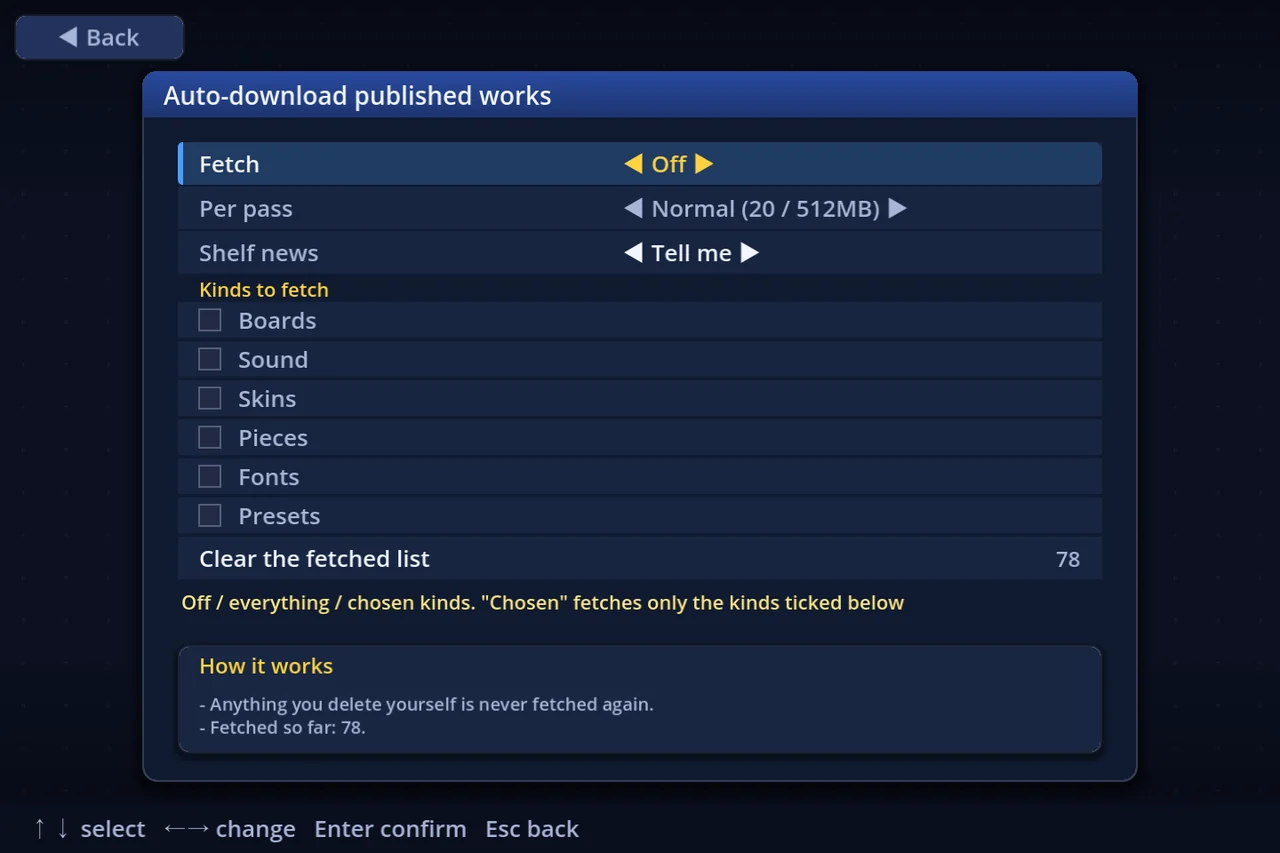
| Row | Choices |
|---|---|
| Fetch | Off (default) / Everything / Chosen kinds (only the kinds ticked below) |
| Per pass | Normal (20 works / 512MB, default) / More (60 / 2GB) / A lot (200 / 8GB). Whichever limit comes first stops the pass; the rest come next time |
| Shelf news | When a collection gets a new board: Off / Tell me (default) / Fetch |
| Kinds to fetch | Boards, Sound, Skins, Pieces, Fonts, Presets, one tick each. Ticking one switches Fetch to Chosen kinds |
| Clear the fetched list | Press twice to clear it |
- A work fetched once is never fetched again, even after you delete it. To get it back, use Clear the fetched list
- When it finishes, the game tells you "Downloaded N published work(s)"
- The first-run setup asks the same question (you can change it here later)
- On a metered connection, leave it Off
Letting the launcher do it
Turn on both Keep running in the background and Download automatically in the launcher's settings, and the launcher fetches game updates and new works while you are not playing. It starts doing so after you have launched that version of the game yourself once. See "The launcher" for details.
7. Getting a board from the website
The official site's Boards page lists every published board with a preview. Each board's page has a Download the package link that gives you the file directly (no login needed).
- Click Download the package and save it (it is named
board-id-version.espkg, for examplecloudy-airship-1.0.2.espkg) - Start the game and drag the file onto its window on the title screen or a menu
You can also pick the saved .espkg with I (From a file) on this screen.
A work installed from a file gets no update notices and no reviews. If you want to hear about new versions, fetch it from the game screen instead (§1–§3).
8. When something goes wrong
| What you see | Usually |
|---|---|
| Offline (N) | The server cannot be reached. The list you saw last time still shows, but nothing can be fetched. F5 tries again |
| Broken | A sound or picture inside could not be read. Remove it with Del and fetch it again |
| The textures or sounds did not change | They are off at first (§4) |
Where installed works are kept, and how to bring in files you already have, is in "Importing". Making and publishing a board of your own is in "Making a board".