Settings
Settings live in two places.
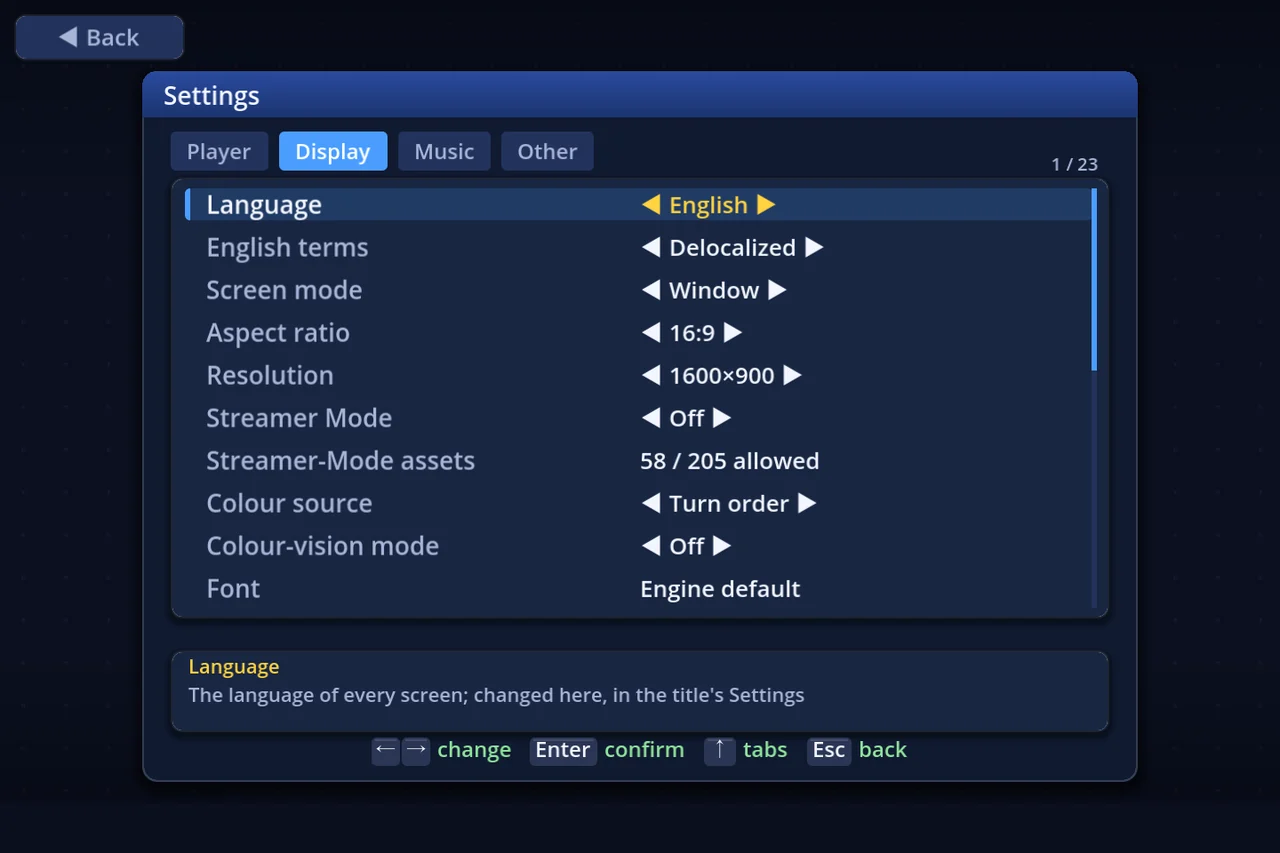
- Settings on the title screen — four tabs. Language, screen, sound, controls: everything you decide outside a match
- Settings during a match (Menu → Other → Settings) — one screen, holding only the things you want to change while playing
Both take effect the moment you change them, and save themselves. There is no confirm step.
- ↑↓ picks a row, ←→ changes its value
- The box at the bottom explains the row you are on
- Rows that Enter opens (key config, music settings, appearance…) show a ▶ in place of a value
- Esc goes back one step (in the in-match settings screen it is Backspace)
⚠ These are not the rules. The goal, the casinos, the vacant lots and the Legacy–Modern mix are in "Rule settings"; the player count and teams are in Player setup.
1. The title screen's settings — four tabs
←→ moves between tabs. With the cursor on a row, ↑ returns to the tab bar.
| Tab | What is on it |
|---|---|
| Player | Your name, and the pieces and colour you play with |
| Display | Language, screen, text and how the board looks |
| Music | Volumes, and which tracks play |
| Other | Speed, controls, imported items, online |
A tab with more rows than fit scrolls; only then does the header show where you are.
2. The Player tab
This is the one tab that is not a column of values — it is about you, this seat.
| Row | What it decides |
|---|---|
| Player name | Enter edits it, Del restores the default |
| Pieces (priority: left first) | Line up your favourites and seats are filled from the list |
| Streamer Mode pieces | These replace them while Streamer Mode is on |
| Turn-order colours | The colours used when Display → Colour source is Turn order |
| Ring | This seat's ring colour when Display → Piece outlines is on. Auto (the player's colour, brightened just enough to stand out against a dark outline) / Custom (pick a colour) / None (no ring for this seat) |
Who plays which seat, with which piece and which controls, is decided in Player setup —"More players, and teams".
3. The Display tab
| Row | Values | What it does |
|---|---|---|
| Language | 日本語 / English / Español | The language of every screen; changed here, in the title's Settings |
| English terms | Localized / Delocalized | The official English releases' terms, or the Japanese original's own. Japanese never changes |
| Screen mode | Window / Fullscreen | |
| Aspect ratio | 16:9 / 16:10 / 4:3 / 3:2 | The screen's shape; it also decides the resolutions on offer |
| Resolution | Native / that aspect's sizes | Window size; fullscreen always matches the display |
| Streamer Mode | On / Off | Hides anything that must not go out on stream |
| Streamer-Mode assets | ▶ | Pick, item by item, which imports Streamer Mode may still show |
| Colour source | Per player / Turn order | What decides each piece's colour; Turn order paints 1st red, 2nd yellow, and so on |
| Colour-vision mode | Off / On | Default piece colours switch to an order that stays apart for colour-blind players, and each seat gets its own shape (○△□◇☆). Colours and pieces you chose yourself are kept. Off by default |
| Piece outlines | Off / On | Whether pieces on the board wear a ring in each player's colour (2D board only). Each seat's colour is picked on the Player tab's "Ring" row. Off by default |
| Font | ▶ | A bundled typeface, one installed on this PC, or one you imported |
| Thousands separator | 1,650 / 1650 | Whether figures carry a comma every three digits |
| Move / Turn display | Full / Short / Numbers only / Turn only | How the sidebar header writes them; Turn only leaves the move count out. What it frees goes to the chip beside it |
| Link arrows | Shown / Hidden | Whether the map check draws arrows to linked squares. The state a match starts in |
| Target frames | Shown / Hidden | Whether selectable squares are framed. Also a starting state |
| Shop names | Name / Price / Price (all) | Whether shop squares say their name or their price. Price keeps names a board's author typed; Price (all) replaces those too. Name by default |
| Landing name tag | Off / No panel / Special / All | Whether the name of the square a piece stops on appears briefly above it. Off by default. No panel = only stops where the "Stop here?" panel did not show the square (a warp arrival, say); Special = everywhere except shops, chance squares and suit squares |
| Menu help | Shown / Hidden | Whether the turn menu and the Shops menu show a line about the highlighted row. Shown by default. When hidden, a row you cannot use still says why when you press it |
| Square digits | Font / Pixel / Outlined | Whether the price and fee on shop squares are written in the regular font or with digit images. Font by default. A texture pack's own digits take priority |
| Sidebar | Players / Sides | In a team match, whether the right-hand panel groups the seats by side |
| Sidebar standing | Player / Side | In a team match, whether the standing badge is the player's own or their side's |
| Sidebar unit | Hide / Show | Whether the player cards write the currency unit after the net-worth figure. Hidden by default |
| Mini-map view frame | Off / On | Whether the mini-map frames the part of the board the screen is showing. Off by default |
| Appearance | ▶ | The hub for tile art, shop designs, texture packs, guest characters and currency |
Link arrows and Target frames can be toggled with a key at any time during a match. These two rows only decide what a match starts with.
4. The Music tab
| Row | Values | What it does |
|---|---|---|
| BGM volume | 0–100 | 0 mutes it |
| SFX volume | 0–100 | Every change plays a sample so you can hear it |
| Summon-active BGM | Off / Play / Each guest's own | Music while a summoned NPC is aboard; two different guests fall back to the shared track |
| Goal BGM during trades | Keep goal BGM / Play trading BGM | Near the goal, whether that music continues through stock trading |
| Chance BGM during the effect | Until the effect ends / While the card shows | |
| Music settings | ▶ | Pick a track per slot, re-volume it, or assign music of your own |
| Sound packs | ▶ | Turn imported sound packs on and off |
| Per-board music | ▶ | A playlist per board (also M on the board list) |
| Playlist vs board music | Board wins / Playlist wins / Auto | Which wins when the board has music of its own. Auto = the playlist wins only while Streamer Mode is on |
| Track changes | Track by track / One per match | With two or more tracks picked |
| Theme songs | ▶ | Assign your own music to four moments: level-up, goal reached, results, bankruptcy |
| Theme priority: BGM | An order | Whose music wins the goal-reached and results BGM. Leftmost wins |
| Theme priority: jingles | An order | Whose music wins the level-up and bankruptcy jingles |
| Other players' themes | Fetch and play / Play held ones only / Don't play them | Only applies in online play |
How to bring tracks and sounds in is in "Importing".
5. The Other tab
| Row | Values | What it does |
|---|---|---|
| CPU speed | Slow / Normal / Fast / Instant | Instant skips the animation entirely |
| Action waits | On / Off / Humans only | Whether buying a shop and the stock panel pause to be read. Off also drops the waits listed under "Pacing" below. The 5× buyout sequence is never affected |
| CPU "Stop here?" | On / Off | Whether a CPU's "Stop here?" prompt stays up for a moment. Off makes CPU turns snappier. With Pacing on Classic, or Action waits Off / Humans only, it is never shown even when On (the value says so) |
| Pacing | Standard / Classic | Classic drops the waits added after v1.0.3 (a CPU's "Stop here?", the screen when a CPU passes a toll gate, the notice before a CPU's auction, the time a CPU spends reading the 5× buyout line). Standard by default. The waits that stop you mis-pressing a CPU's offer or auction stay, and the game rules do not change |
| Key config | ▶ | Keyboard bindings (up to two keys per action) |
| Controller config | ▶ | Controller buttons and stick behaviour |
| Input test | ▶ | Check that every button and stick is reaching the game |
| Controls presets | ▶ | Save and share your keyboard and controller bindings (and P1's name, piece and colour) by name (5a below) |
| Settings presets | ▶ | Save and share your display, pacing and music choices by name (5a below) |
| Mouse input | On / Off | Whether mouse clicks, hover and the wheel do anything. On by default. Off still leaves the keyboard and pads (the editors are not affected) |
| Piece settings | ▶ | Import, export and hide pieces |
| Delete imported items | ▶ | Delete pieces, sounds, art, boards and the rest that you imported |
| Profiles | ▶ | Share this machine: keep records, saves and settings separate per person |
| Sending data | ▶ | Whether match records are sent to the server. The same screen lists what an upload contains |
| Auto-update content | On / Off | Replace downloaded items with their newer versions at launch |
| Auto-download published works | ▶ | Fetch boards, pieces and more that people have published, at launch |
5a. Settings presets and controls presets
Enter on the Controls presets or Settings presets row opens that kind's preset list. The keys are the rule presets' (K saves what you have now, Enter uses one, E / I export to / import from a file, M / P share on the server — see chapter 6 of "Rule settings"). Each kind keeps up to 100. Ones other people have published are under Presets in "Downloading".
A settings preset carries your display, pacing (CPU speed, action waits and so on) and music choices (what plays when).
- Volume, window size, your consent to sending data, Streamer Mode and Mouse input never go in. Nor do your font or pack choices
- Use shows the list of settings that would change. Yes, apply switches them; anything the preset does not carry stays as it is
A controls preset carries every keyboard binding, P1's controller bindings (buttons and stick), and P1's name, piece and colour (piece slot 1 under Settings → Player). Use brings up a card with three rows.
| Row | Values | Reaches |
|---|---|---|
| Keyboard | Apply / Skip | every profile on this computer |
| Controller | Which seat's controller (P1 and up) / Skip | every profile on this computer |
| Name, piece, colour | Which of P1–P8 / Skip | this profile only (that piece slot, and that seat's name) |
- The name/piece/colour row draws the piece you have Now beside This preset's. Move the controller to another seat and the name/piece/colour row follows it
- Apply and check puts the keys and controller in on trial. Press the NEW confirm within 10 s to keep them (Keep it); if you don't, your previous bindings come back — so somebody else's layout can never lock you out
- The name, piece and colour are kept the moment you press it (they stay even if the keys revert)
- A preset whose piece you don't have says so ("Missing piece"). R fetches it (used without it, you get a built-in piece)
Player setup opens the same list with K (or the Controls (K) button at the bottom). Used from there, the name, piece and colour go into that screen's seat (human seats only; your piece slots under Settings → Player are not changed). It is not offered in an online room's player setup.
6. Settings during a match
On your own turn: Menu → Other → Settings. Only two other entries are left there (Save & quit and Relief).
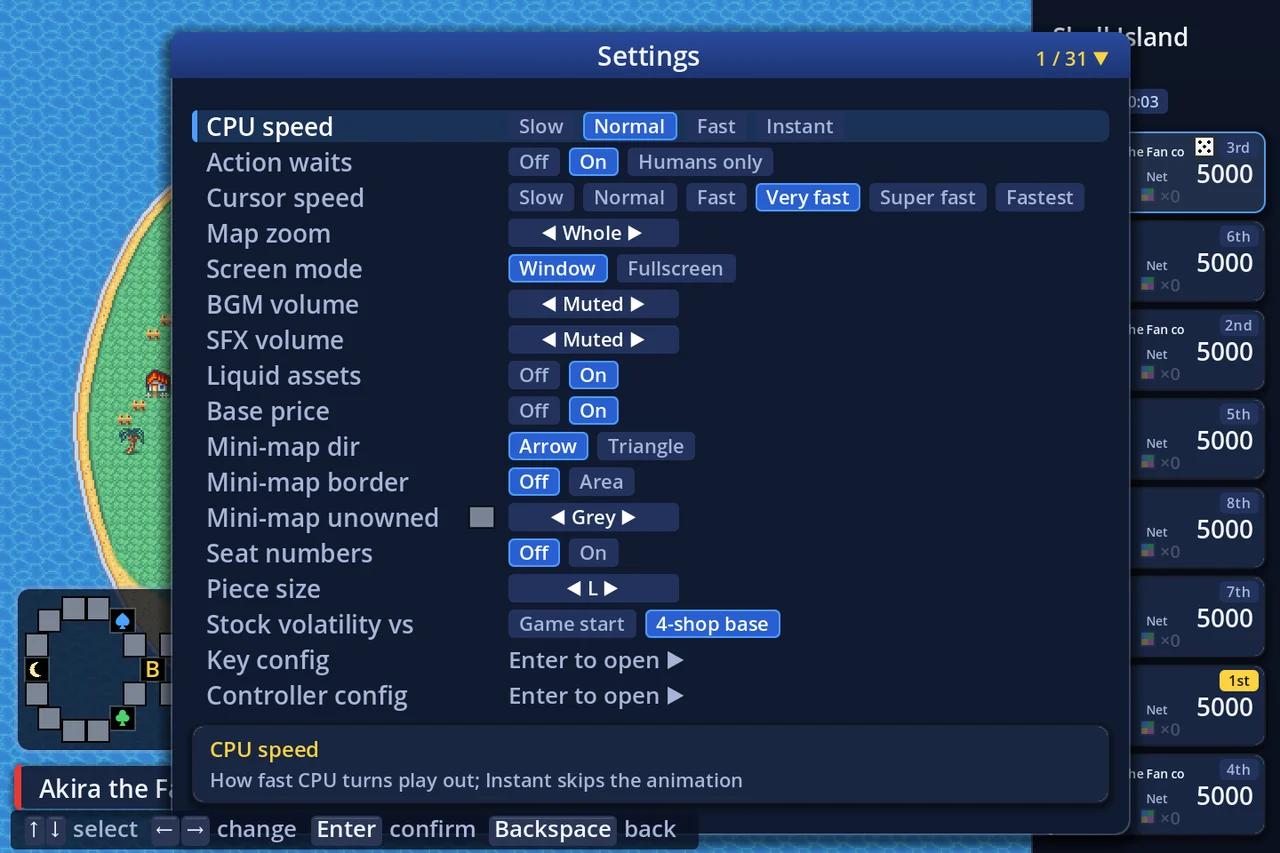
It scrolls for the rows that do not fit (the header shows where you are, e.g. "7 / 31"). It opens on top of the game screen, so map zoom and piece size can be judged against the board behind it.
| Row | Values | What it does |
|---|---|---|
| CPU speed | Slow / Normal / Fast / Instant | The same setting as the title screen's row |
| Action waits | Off / On / Humans only | The same setting as the title screen's row |
| Cursor speed | Slow / Normal / Fast / Very fast / Super fast / Fastest | How fast the map cursor moves |
| Map zoom | Widest / Wider / Whole / Wide+ / Wide / Normal / Close / Closer | Board zoom (8 steps) |
| Screen mode | Window / Fullscreen | |
| BGM volume | 0–100 | |
| SFX volume | 0–100 | |
| Liquid assets | Off / On | Show cashable assets on the player cards |
| Base price | Off / On | Show the base shop price in shop panels |
| Mini-map dir | Arrow / Triangle | The shape of the came-from indicator |
| Mini-map border | Off / District | Whether mini-map shops carry a district-coloured border |
| Mini-map unowned | Grey / Light grey / Dark grey / White / Near black / Black, white frame | The colour of shops and lots nobody owns |
| Seat numbers | Off / On | Show each owner's seat number on their squares — readable when two colours are close |
| Piece size | S / M / L / XL / XXL | The size of the active player's piece |
| Stock volatility vs | Game start / 4-shop base | The baseline for the stock screen's volatility chip |
| Key config | Enter | |
| Controller config | Enter | |
| Input test | Enter | |
| Move / Turn display | Full / Short / Numbers only / Turn only | |
| Sidebar | Players / Sides | |
| Sidebar standing | Player / Side | |
| Streamer Mode | Off / On | Can be flipped mid-match. Per-asset choices stay on the title screen |
| Shop names | Name / Price / Price (all) | The same setting as the title screen's row |
| Sidebar unit | Hide / Show | The same setting as the title screen's row |
| Mini-map view frame | Off / On | The same setting as the title screen's row |
| Square digits | Font / Pixel / Outlined | The same setting as the title screen's row |
| Landing name tag | Off / No panel / Special / All | The same setting as the title screen's row |
| CPU "Stop here?" | Off / On | The same setting as the title screen's row |
| Pacing | Standard / Classic | The same setting as the title screen's row |
| Menu help | Hidden / Shown | The same setting as the title screen's row |
| Piece outlines | Off / On | The same setting as the title screen's row (each seat's colour is on the title's Player tab) |
| Mouse input | Off / On | The same setting as the title screen's row |
Nothing on the board announces Streamer Mode. This row is the only place the current answer can be read back.
7. Key config and controllers
Key config rebinds each action on its list, and every one of them can hold two keys.
- On-screen prompts ("Enter to confirm") are written with the keys you bound, so they follow a rebind
- Controller config is per seat: with several pads plugged in, each seat gets its own
- Input test does nothing but show you which buttons and sticks are reaching the game
8. Where it is all saved
Settings save themselves and survive a restart. On Windows the file is %APPDATA%\EpochStreet\settings.json.
Make a profile and everyone from the second person on gets their own folder (records, saves and settings can be shared or kept apart, one bundle at a time). While there is only one person, nothing moves.
9. Worth knowing
- The rows that appear in both places (CPU speed, action waits, volumes, screen mode, move/turn, the three sidebar rows, Streamer Mode, shop names, mini-map view frame, square digits, landing name tag, CPU "Stop here?", Pacing, Menu help, Mouse input, key config and more) are one setting. Changing either one writes the same place
- The language is changed in the title screen's Settings; the in-match screen has no language row
- Imported assets are hidden by default in Streamer Mode. Allow them one at a time under Streamer-Mode assets — "Importing"
- A match's rules are a different screen — "Rule settings"