Playing over Parsec
Parsec is an app that streams one PC's screen to people somewhere else so they can play on it together. With Epoch Street, only the host's PC runs the game. Guests watch the stream and use their own controllers to join Local multiplayer on the host's PC.
- Guests do not need the game installed — Parsec is enough. Boards, pieces and sounds all come from the host's PC
- To the game, a guest's controller is a controller plugged into the host's PC. Everything in this guide is therefore about setting up "several people on one PC"
- This is not the game's own online play (matchmaking and custom rooms) → "Online play"
★ The four things that matter most
1. Guests play with a controller (a keyboard would be shared with the host's)
2. Turn the game's Mouse input Off (a mouse can click during somebody else's turn)
3. Connect every guest first, then open Player setup (a controller that is not connected cannot be picked)
4. Hand over Controls presets in advance (guests send their layout, name, piece and colour as a file; the host just applies it to a seat → 3b, 4e)
★ Controls presets pay off even for seasoned Parsec users. However fast the Parsec side goes, the in-game setup (having each guest press buttons one by one, typing names, choosing pieces and colours) can only be talked through over the stream, and it takes time per person. With a Controls preset it becomes a few seconds of "load and apply" per guest, and the same file works again next time.
1. How it works — what reaches the game
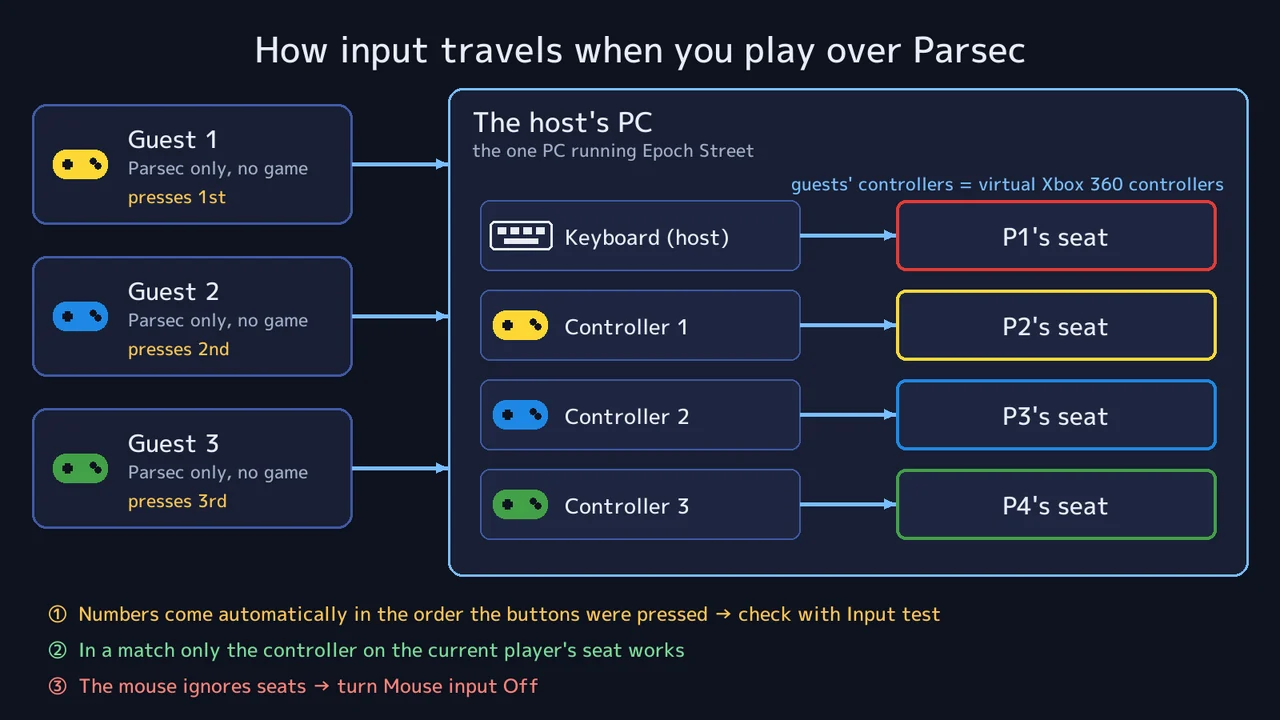
When a guest connects over Parsec and presses a button on their controller, the host's PC gains one virtual controller (an Xbox 360 controller by default). The game calls it by number: Controller 1, Controller 2… (a controller the host plugged in for themselves counts too)
| Input | What the game sees |
|---|---|
| A guest's controller | One separate controller on the host's PC each. Only the controller assigned to a seat works on that seat's turn |
| A guest's keyboard | If Parsec allows it, it becomes the same single keyboard as the host's. With two keyboard seats, anyone's keys work on either turn |
| A guest's mouse | If Parsec allows it, it becomes the same single mouse as the host's. The mouse ignores seats (see the warning below) |
- The numbers are given automatically in the order the controllers connect (the order the buttons were pressed). You cannot pick them in the game. Reconnecting Parsec can change the numbers, so check them with Input test every time (4c)
- During a match only the controller assigned to the current player's seat works. Pressing anyone else's does nothing —except on the screens everyone shares (auctions, the stock price screen, results…), which any controller can move on
⚠ The mouse is the one input with no seat. With Mouse input on, the host (or a guest allowed a mouse) can click through somebody else's turn. On a Parsec day, turn the game's Mouse input Off (2b).
2. The host's preparation (before the guests arrive)
2a. Parsec settings
On the host's PC, open Parsec's Settings (cog) → Host.
| Setting | Use | Why |
|---|---|---|
| Parsec Virtual USB Gamepads | Enabled | This is what brings guests' controllers onto the host's PC. If the driver is missing, install it from the link on this row |
| Virtual Gamepad Type | Xbox 360 (default) | Epoch Street reads it as an Xbox 360 controller. There is no reason to pick another type |
After a change, press Restart at the top of the settings page.
- Leave guests' permissions at the default (controller only). Not giving them keyboard and mouse is recommended (the table in section 1)
- If Steam is running on the host, its "Xbox Configuration Support" can turn a guest's controller into a mouse. If things behave oddly, turn it off in Steam's Big Picture → Settings → Controller
2b. Game settings
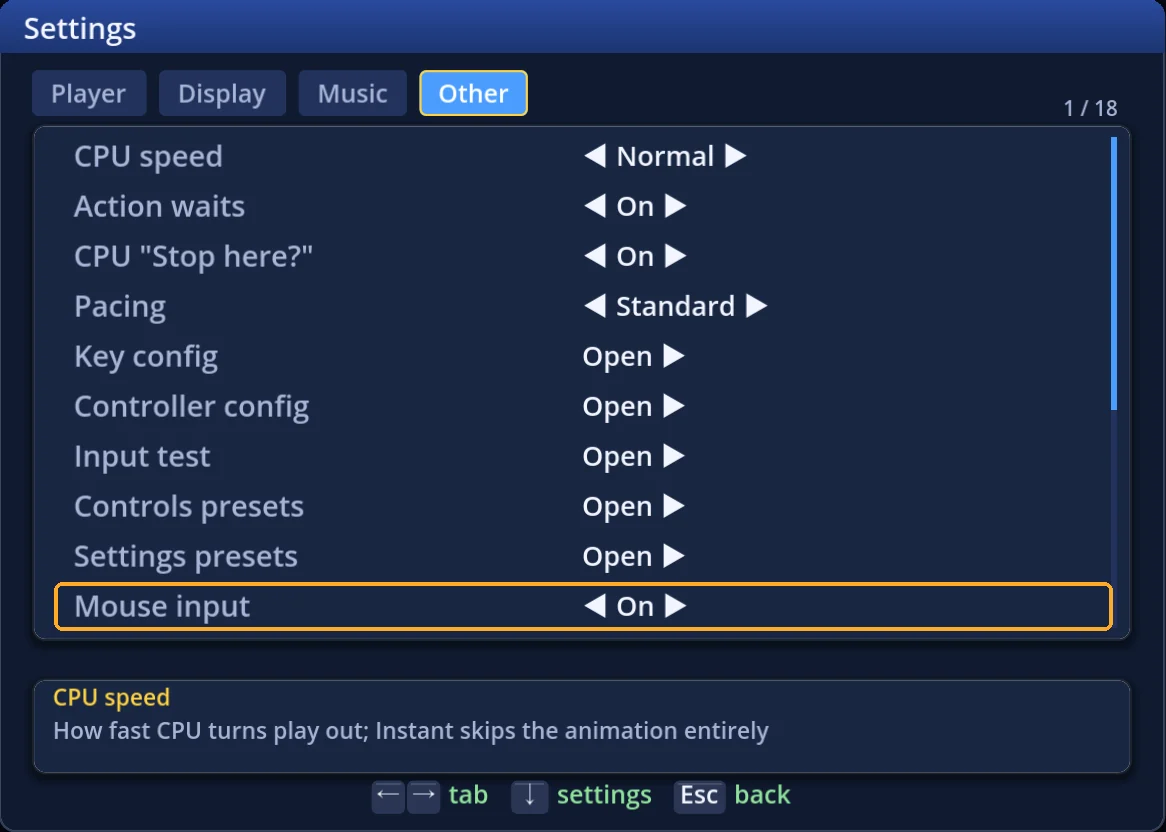
Check these rows in the title screen's Settings (each one saves the moment you change it → "Settings").
| Tab | Row | Use | Why |
|---|---|---|---|
| Other | Mouse input | Off | The mouse does not check whose turn it is. With it off the host still drives every screen from the keyboard |
| Display | Screen mode | Fullscreen | Parsec streams the whole screen. In a window, guests see your desktop too |
| Display | Frame-rate limit | 60 fps | Parsec's stream normally tops out at 60 fps. A limit takes load off the host's PC |
| Music | BGM volume / SFX volume | To taste | Guests hear the host PC's sound as it is. Keep it quiet enough to talk over |
| Display | Streamer Mode | Normally Off | Not needed just to connect over Parsec. Turn it on only if you are also streaming or recording |
Mouse input is also in the in-match settings (your turn's Menu → Other → Settings). Both are the same single setting.
2c. Get the boards and assets ready
Guests' PCs need nothing. Only the boards, pieces, textures and sounds on the host's PC can be used.
- Fetch the boards you want to play in advance → "Downloading"
- If a guest wants to use a piece they made, the host's PC needs that piece. If it is published the host downloads it; otherwise the guest sends the file (.espiece) and the host imports it → "Importing"
2d. Save a player preset (when it is the same group every time)
In Local multiplayer → Player setup, set the count, names, pieces and colours, then press P (or Presets (P) at the bottom) → K to save. Next time Enter (use) brings the same line-up back.
- A preset also records which seat uses which controller — but by number. Parsec's controller numbers can change from day to day, so always check each seat's Controls after using it
- A seat whose controller is not connected when the preset is used becomes CPU. Use it after every guest has connected
2e. Ask the guests for their Controls presets
Ask guests who own the game to send their Controls preset file (.espreset) by the day before (3b shows how). On the day you only load it and apply it to a seat (4e), so the time from connecting to starting shrinks a lot.
- Files you load stay in the host's Controls presets list. For the same guest next time, no loading — just Enter
- Guests without the game get their buttons fixed on the day in 4f. That layout stays on the seat (P2 and so on), so seating them there again keeps it
3. The guests' preparation
3a. Parsec and the controller
- Install Parsec and make an account (being friends with the host makes connecting easier)
- Plug in the controller, open Parsec's Settings → Gamepad, pick your controller, press buttons and watch the State display move
- If you run something like DS4Windows or BetterJoy that turns a controller into an Xbox one, check that Parsec's list does not show the same controller twice. If it does, the host's PC gets two controllers from you (remove one of them)
No controller? Talk to the host first. If the host allows a keyboard you can play with it, but the keyboard is shared with the host's, so keyboard seats cannot be told apart (the table in section 1).
3b. ★ Make a Controls preset and send it (if you own the game, please do)
If Epoch Street is on your own PC too, you can put your usual button layout, name, piece and colour into one file for the host. It is the fastest way through the setup on the day, so send it by the day before.
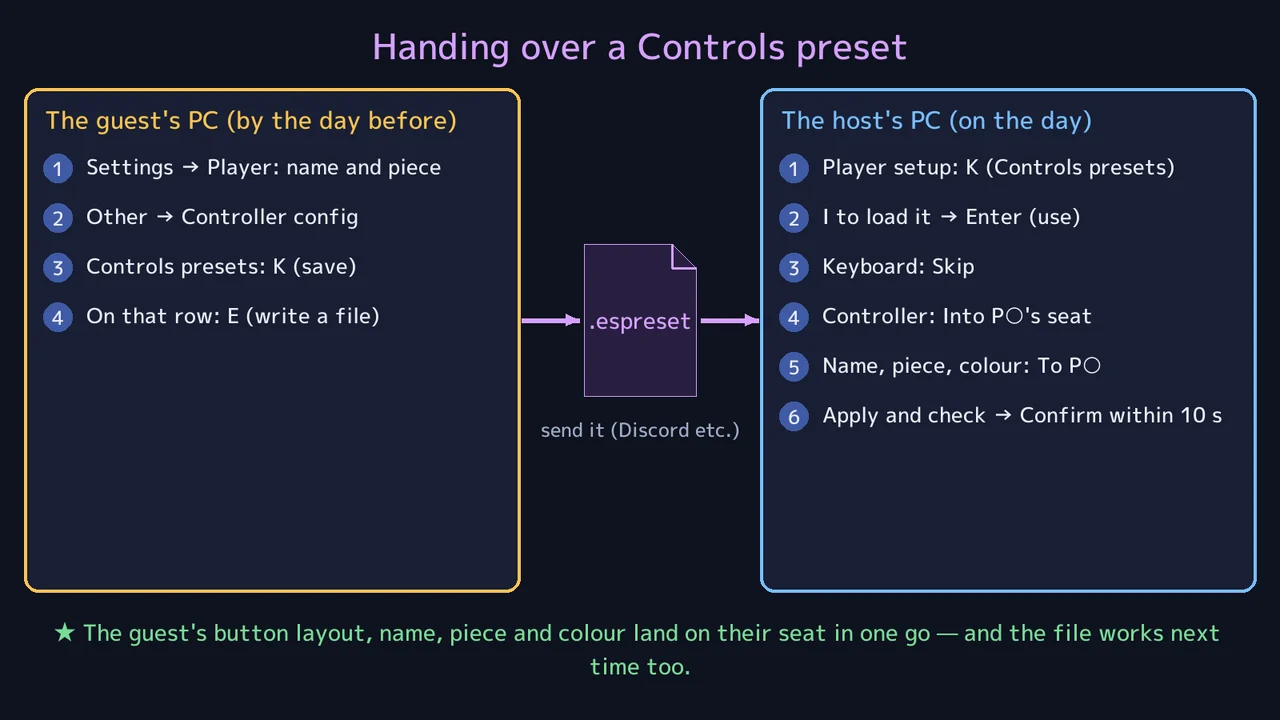
| What a Controls preset carries | Applied on the host's PC |
|---|---|
| Controller layout (buttons and stick) | Goes into your seat only — no binding buttons one by one |
| Name, piece, colour | Your seat's name, piece and colour change in one go — no spelling your name over the stream |
| Keyboard layout | The host skips it (to keep the host's own keyboard) |
- It helps most if you play with a changed layout (Confirm and Back swapped, say) — you keep your usual feel on the host's PC
- Make it once and the same file works for any host
How to make it:
- On your PC, put your name and piece into Settings → Player: Player name and slot 1 of Pieces (priority: left first)
- In Settings → Other → Controller config, adjust P1's layout as you like (the default is fine too)
- Open Settings → Other → Controls presets and press K to save the current state (give it a name)
- On that row press E to write it out as an .espreset file
- Send the file to the host (over Discord, for example)
A Controls preset also carries the whole keyboard layout. The host applies it with the keyboard skipped (4e), so guests need not worry about it.
4. Connecting the guests — on the day
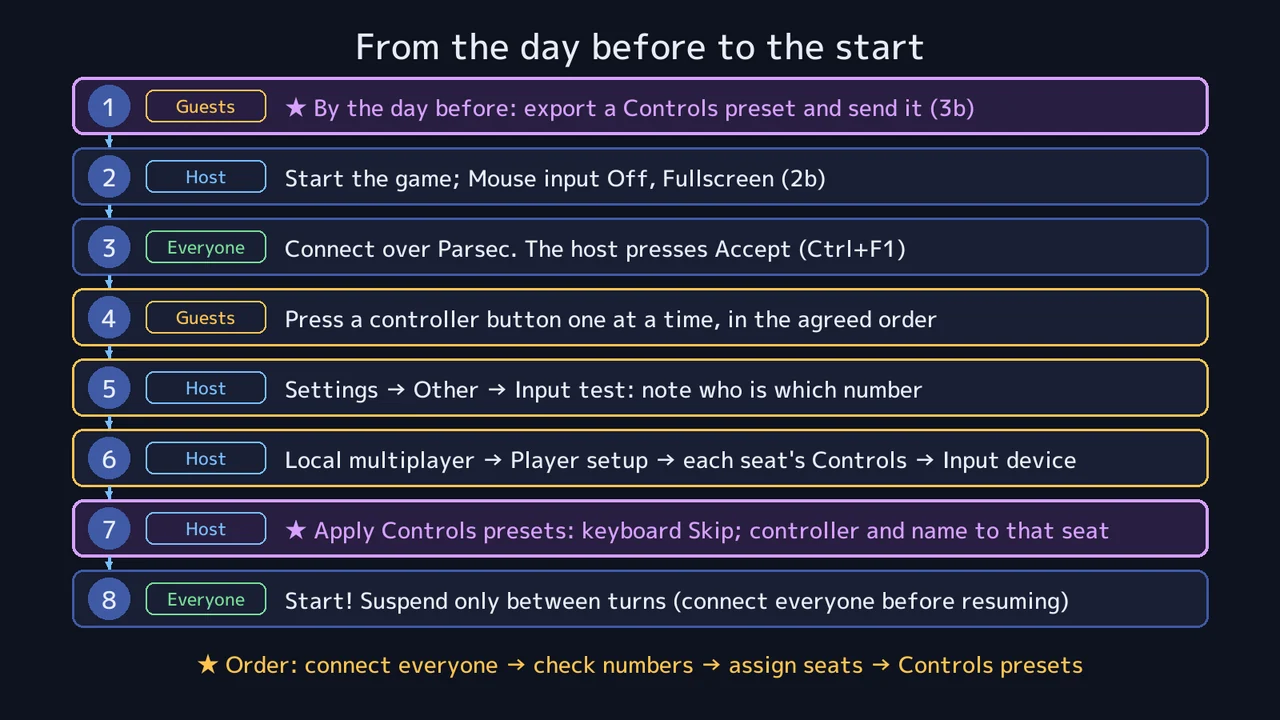
Work from the top down. The order matters at "connect everyone → check the numbers → assign the seats".
4a. Before connecting (host)
- Start the game and wait on the title screen (with 2b already done)
- If the host also plays with a controller, connect the host's controller first. That gives it the smallest number
- Make an invite link with Parsec's Share, or have friends press Connect
4b. Connect (everyone)
- Guests connect to the host over Parsec. The host gets a prompt: Accept (or Ctrl+F1)
- Guests press a button (A, say) on their controller one at a time, in the order agreed. When the host's PC plays its "USB device connected" sound, that controller is in
- Once everyone's sound has played, move on
To redo the order, the host right-clicks Parsec's icon in the taskbar and chooses Reset gamepad — every guest controller is dropped. Then have everyone press a button again, in the order you want.
4c. Check who has which controller
Open Settings → Other → Input test and have the guests press a button one at a time.
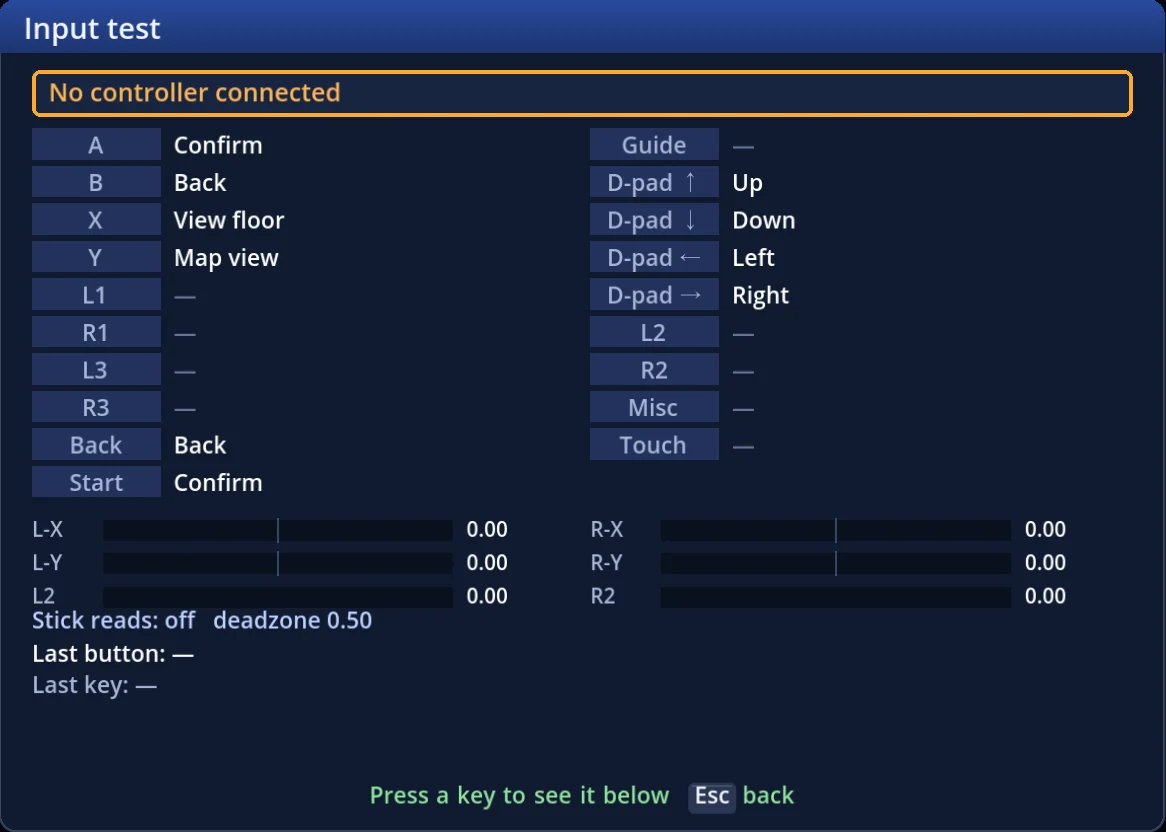
- Pressing a different controller switches the screen to it, and the top line shows its number and name, such as "Controller 1: (the controller's name)"
- Write down each pair — "P2, Sam = Controller 1"
- If a button does not register, recheck the Parsec connection and the guest's controller (3a)
- Leave Input test by holding the controller's back button for one second, or with Esc on the keyboard
4d. Assign the seats
Open Local multiplayer → Player setup (with a preset from 2d, press P → Enter here).
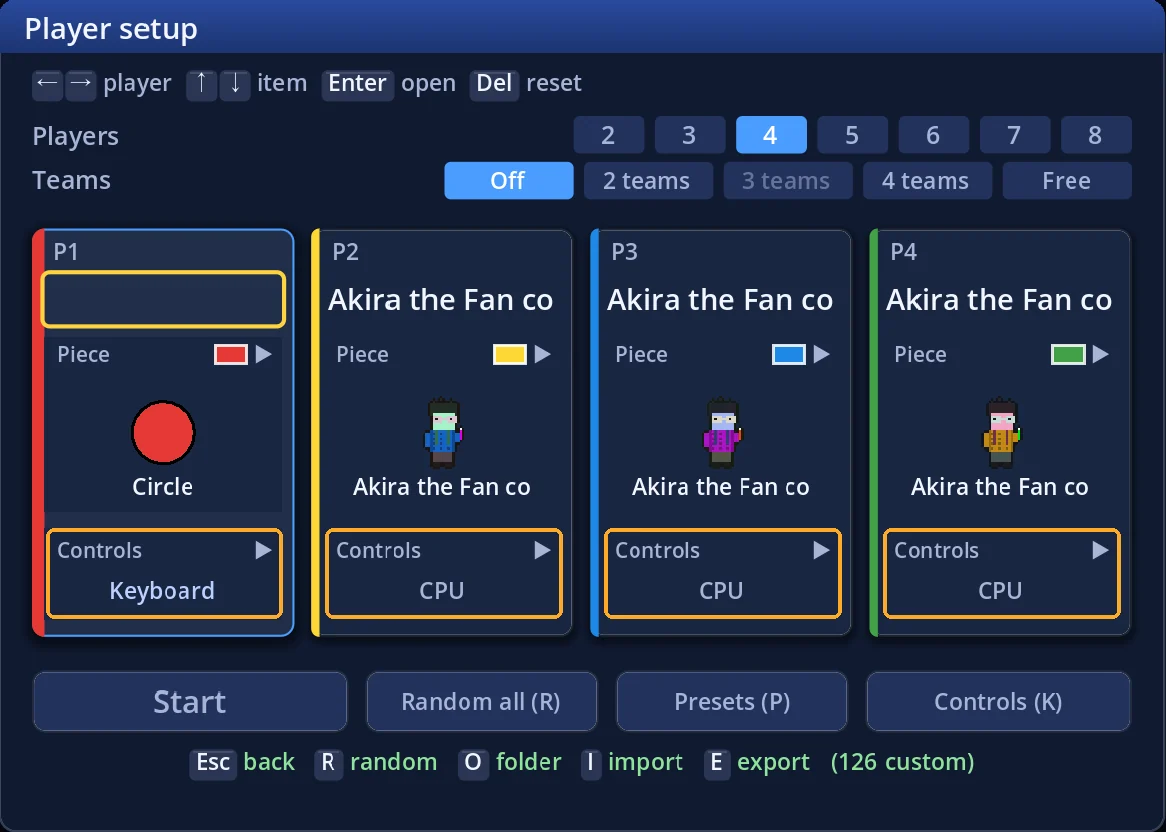
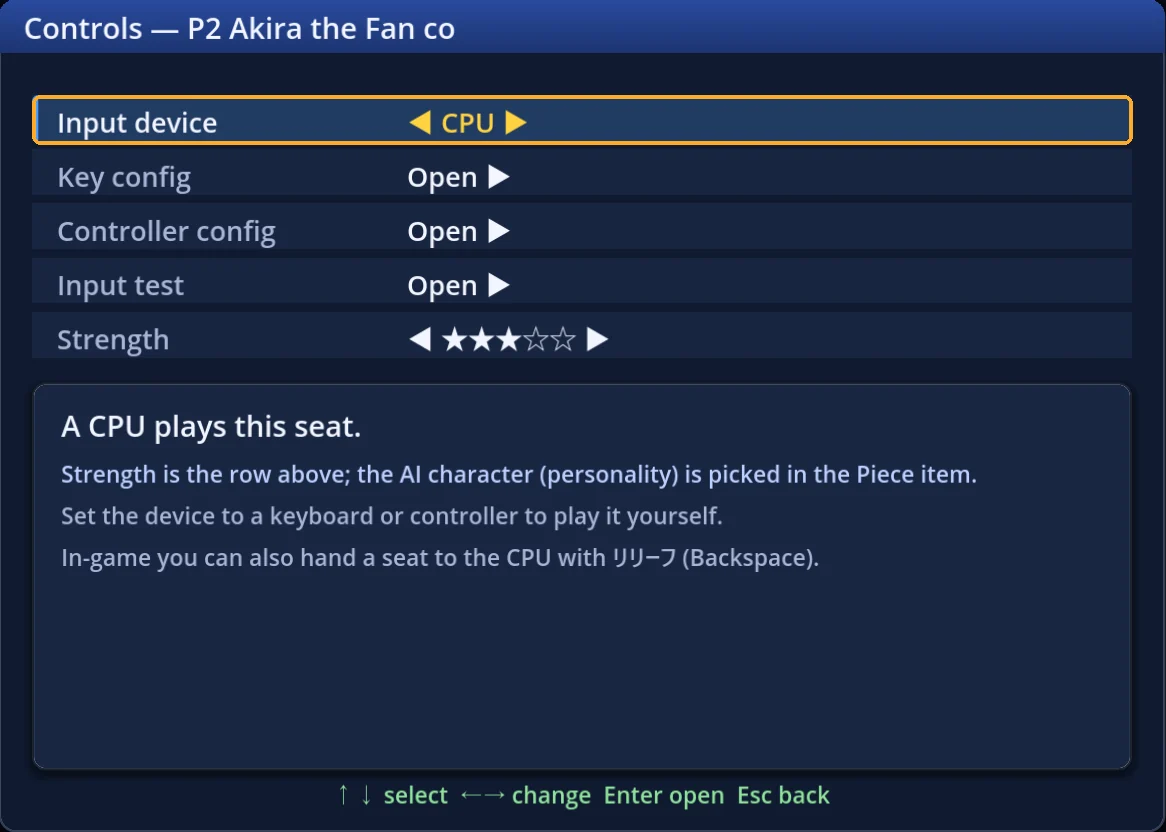
- Set Players at the top to the number playing
- On each seat card, press Enter on the Controls row to open "Controls — P2 …"
- With ←→ on Input device, pick that person's controller from your 4c notes (it cycles keyboard → connected controllers → CPU, skipping controllers another seat is using)
- Controller config and Input test here open that seat's layout to fix or try
- Esc back, and once every seat is done set each seat's name and piece
- If the host plays on the keyboard, the host's seat stays Keyboard. Keep it to one keyboard seat
- Seats nobody fills become CPU
- If this group will play again, save it now with P → K as a player preset (2d)
4e. ★ Apply a guest's Controls preset (when you have the file from 3b)
This is the heart of the setup on the day. Once 4d has given each seat its controller, press K on Player setup (or Controls (K) at the bottom) to open the Controls presets list.
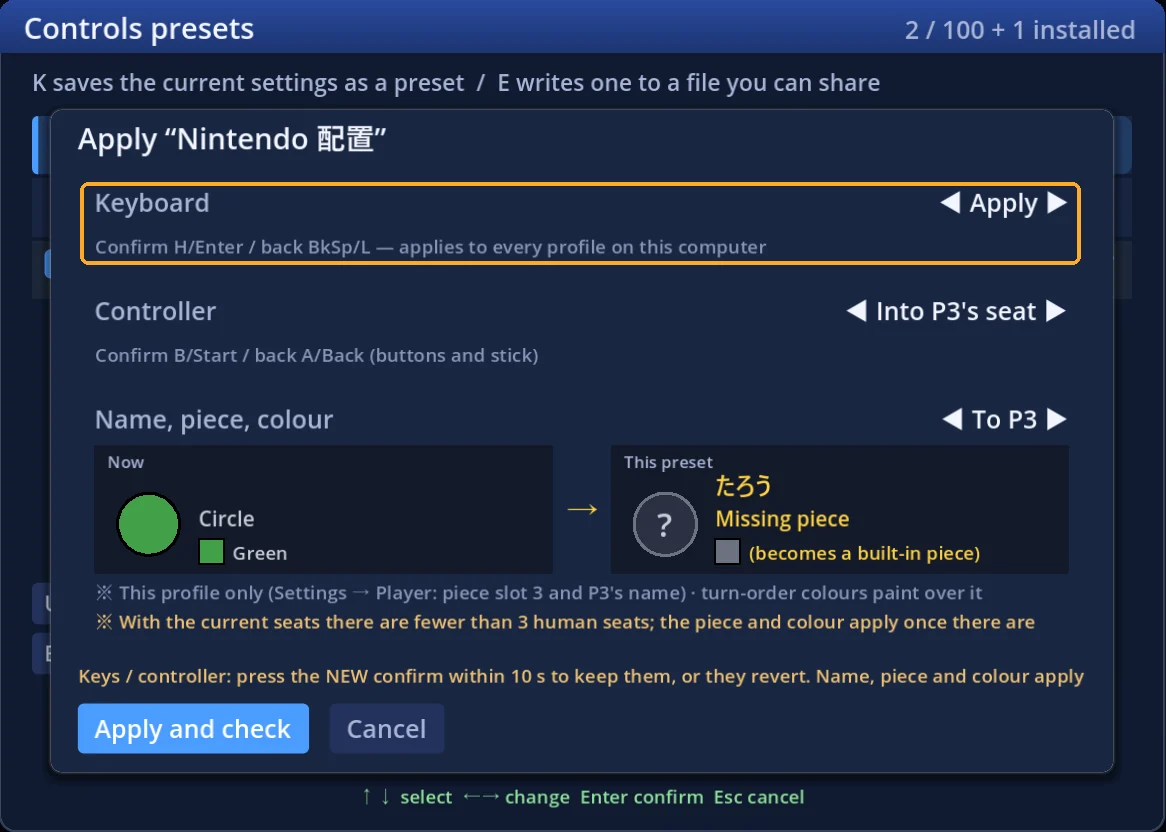
- Press I and load the guest's .espreset (it is added to the list)
- Press Enter (use) on that row; a card asks where each part goes
- Set the three rows like this:
| Row | Set it to | Why |
|---|---|---|
| Keyboard | Skip | Otherwise this PC's whole keyboard layout becomes the guest's (every profile) |
| Controller | Into P○'s seat (that guest's seat) | The guest's button layout goes into that seat only |
| Name, piece, colour | To P○ (the same seat) | Opened from Player setup, it changes that seat's name, piece and colour |
- Press Apply and check, then press Confirm within 10 seconds to keep it (with the keyboard skipped, the host's keyboard Enter will do). Otherwise the controller layout goes back. Name, piece and colour are kept the moment you press
- Repeat 1–4 for each guest
- Name, piece and colour can only go to a human seat. Assign that seat's controller in 4d first
- "Missing piece" means that piece is not on the host's PC. Fetch it with R (when published), or import it as in 2c and use the preset again
- In the picture the Keyboard row still says Apply. For a guest's preset, always set it to Skip
4f. Fixing a button layout
Controller config is per seat (changing P2 leaves P3 alone). Opened from a seat's Controls → Controller config in Player setup, it shows that seat's table.
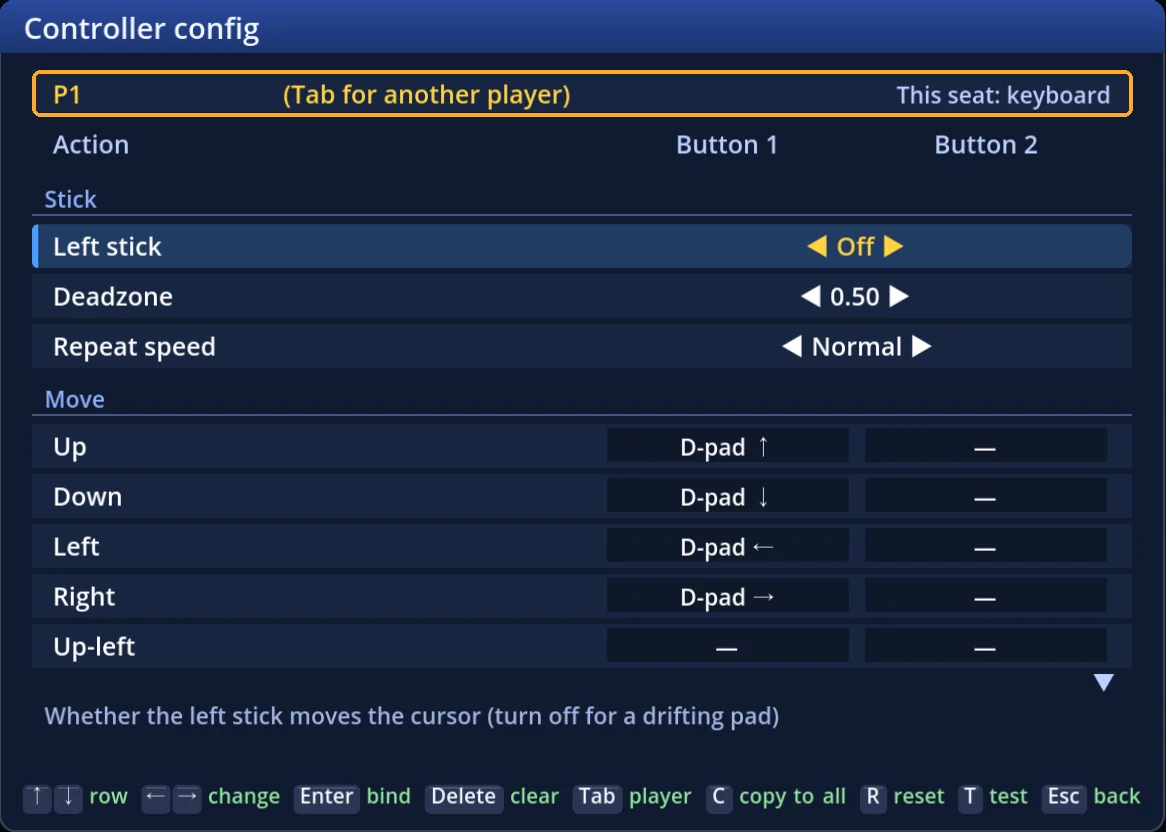
- Tab moves to another seat's table (the heading reads like "P2 …'s pad")
- Pick a row, press Enter, and have the guest press the button they want for it
- C copies this seat's table to everyone, R resets it (C, R and Delete work from the keyboard only)
- The defaults are D-pad to move, A / Start to confirm, B / Back to go back, Y for the map (the picture's "Left stick: Off" is not the default — by default the stick works too)
5. During the match
- Press Start and it plays exactly like several people on one PC
- Only the controller assigned to the current player's seat works. If a guest cannot move on their own turn, suspect the connection or the seat assignment (sections 6 and 9)
- From the Menu (opened on your own turn), Other → Settings opens the settings and Other → Save & quit suspends. The current player opens both
- Shared screens (auctions, stock prices, results…) move on from any controller
- If someone takes too long, the rules' turn and time limits let you decide when the match ends → "Turn and time limits"
6. If a connection drops
When a guest's Parsec connection drops, their controller leaves the host's PC too. The game does not pause. When that seat's turn comes, nobody can move it until the controller is back.
- The guest reconnects over Parsec and presses a button on their controller
- When a controller of the same kind comes back, the game puts it back on that seat
- Once it is back, check that it moves on that seat's turn
⚠ Parsec guests' controllers all look like the same kind (Xbox 360). If two people drop and come back at once, their seats can swap. Check the number with the current player's Menu → Other → Settings → Input test. If they did swap, suspending (section 7) and reconnecting is the sure fix.
If someone cannot come back at all, suspend and resume to get their seat moving again: on resume, a seat whose controller is not connected becomes a Keyboard seat.
- Suspend between turns from somebody else's turn (section 7). If it is already that person's turn, close the game (the autosave from the start of that turn is kept)
- Resume with Continue on the title screen (with both saves present you can choose)
- The host's keyboard now drives that seat. To hand it to the CPU, choose Menu → Other → Relief (CPU) on its turn (Backspace ends it)
7. Suspend now, carry on another day
- The current player chooses Menu → Other → Save & quit → Suspend & quit to title. It is only available between turns (mid-turn it is greyed out)
- Next time, resume with Continue on the title screen
⚠ Connect every guest before resuming. On resume each seat gets back the controller number it had when you suspended. A seat whose controller of that number is not connected becomes Keyboard — and the host's keyboard drives it. Have everyone press their button in the same order as when you suspended (4b), then press Continue.
- A resumed match does not pass through Player setup. Seats cannot be given a different controller in the middle of a match
- The suspend save is removed when you resume (and the autosaves after that are written with the assignment you resumed with), so you cannot "resume, then reorder". Get the order right before resuming
- A seat that ended up as Keyboard is driven by the host's keyboard (section 6)
8. When you are done (host)
- Drop the guests in Parsec (Ctrl+F3 kicks everyone)
- Turn Mouse input back On for your own play (if you turned it off in 2b)
- Put Frame-rate limit and Screen mode back too, if you want your usual values
- Layouts applied from guests' Controls presets stay on those seats. If you never use P2 and up, you can leave them
9. When something goes wrong
| Problem | Where to look |
|---|---|
| A guest's buttons do nothing | Does Input test (4c) react? If not: Parsec's Virtual USB Gamepads (2a) and the guest's Gamepad tab (3a) |
| Input test reacts, but nothing moves in the match | That person's seat's Controls → Input device must be that controller number (4d) |
| One guest counts as two controllers | DS4Windows or similar doubling the controller on the guest's PC (3a) |
| The numbers are in a jumble | Host's Parsec Reset gamepad → press the buttons again in the agreed order (4b) |
| Someone gets moved during another person's turn | Is the game's Mouse input off (2b)? Has Parsec given guests a keyboard or mouse? |
| A seat became CPU after using a preset | A controller was not connected yet. Connect everyone, then fix that seat's Input device (4d) |
| A guest's buttons mean the wrong things | That seat's Controller config (4f). The guest's controller arrives on the host's PC as an Xbox 360 button layout |
| The stream stutters or lags | The game's Frame-rate limit at 60 (2b). If it is still heavy, look at Parsec's bandwidth and resolution settings |
10. Further reading (Parsec's own help)
- Hosting and Permissions — inviting, accepting, permissions
- Setup Gamepad — checking a controller, the virtual controller type, reordering controllers
Parsec's screens and setting names can change between Parsec versions. For anything about Parsec itself, the official pages above are the most current.
If you try playing over Parsec and notice anything, tell us on Discord.